

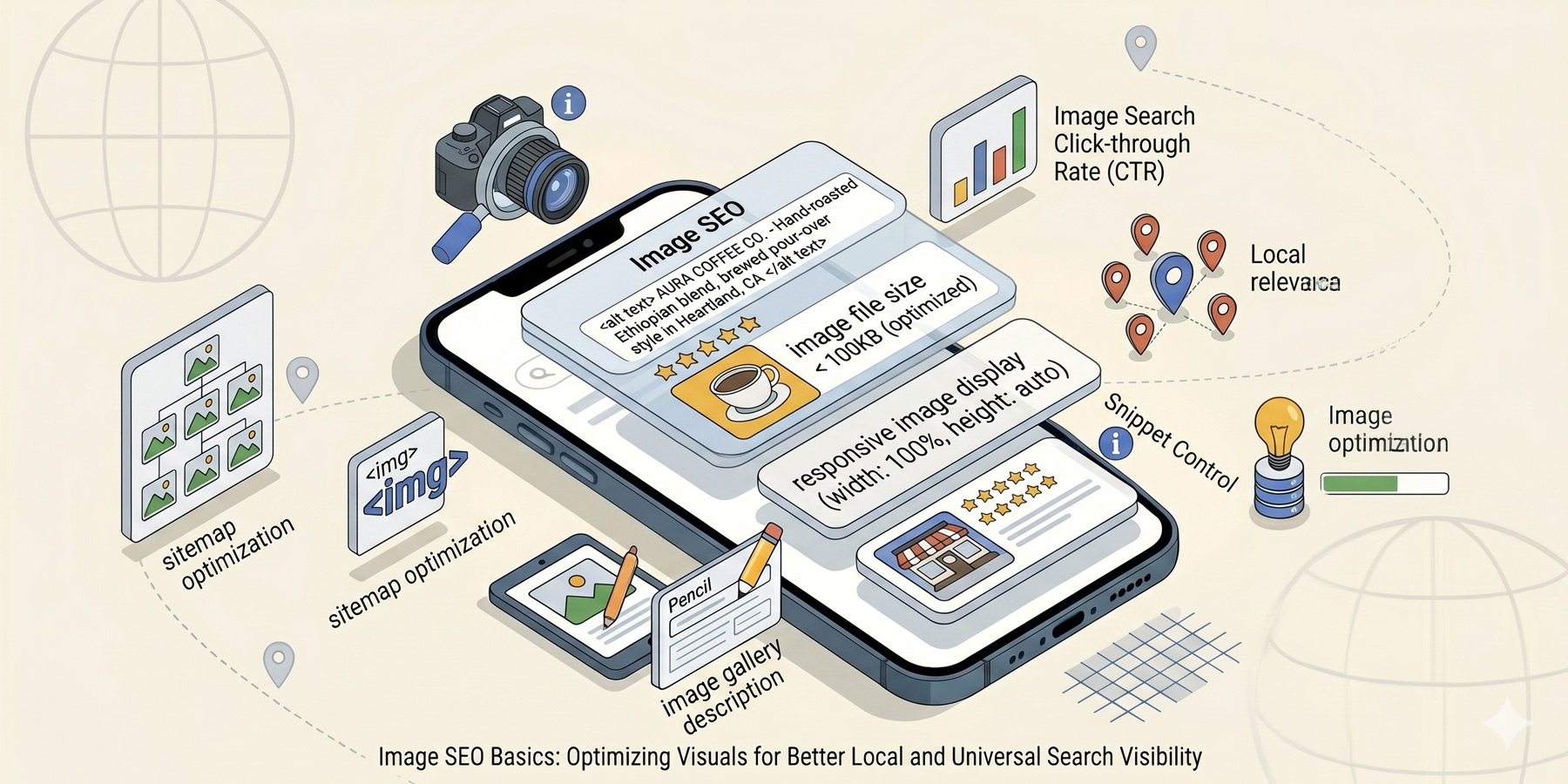
Most small business websites in 2026 are dragging around hundreds of megabytes of poorly-named, badly-compressed, alt-text-free images. Each one is doing three quiet bad things at once: slowing your site down, hurting your accessibility, and missing an SEO signal.
Image SEO is one of those rare wins where doing the boring thing properly pays off in multiple directions: faster pages rank better, accessible sites reach more people, and well-named images can pull traffic from Google Image Search.
Here is what to actually do.
Why images matter for SEO
- Page speed. Heavy images are the single biggest cause of slow-loading websites. Slow sites rank lower. Slow mobile sites rank much lower.
- Image search visibility. Google Image Search is a real traffic source for plenty of businesses (especially product, design, and visual industries). Properly tagged images can show up there.
- Accessibility. Screen readers depend on alt text. Accessible sites also tend to perform better in search overall because Google treats accessibility as a quality signal.
The good news is that fixing image SEO takes the same five-minute workflow per image, and once you’ve got the habit, it sticks.
File names: stop using IMG_4837
When your phone takes a photo and you upload it to your website, it arrives with a name like IMG_4837.jpg. That tells Google nothing about the image. Rename every image before uploading.
The rules:
- Use lowercase letters only
- Use hyphens instead of spaces or underscores
- Describe what’s in the image with the keyword(s) it should rank for
- Keep it short (3 to 5 words)
Examples:
- Bad: IMG_4837.jpg
- Better: kitchen-renovation-johannesburg.jpg
- Bad: Screen Shot 2025-08-14 at 13.42.png
- Better: website-design-process-step-1.png
Rename before uploading. Once an image is in your media library, renaming it in WordPress can break image links across your site.
Alt text: not just for SEO
Alt text is the written description of an image that’s read aloud by screen readers (for visually impaired users) and shown when an image fails to load. Google uses it as a signal about the image content.
Good alt text:
- Describes the image accurately and naturally
- Is 5 to 15 words long
- Includes relevant keywords only where they fit naturally
- Doesn’t start with “Image of\…” or “Picture of\…” (screen readers already announce that it’s an image)
Examples:
- Image: a kitchen renovation showing a new white island. Alt text: “White marble kitchen island in renovated Johannesburg home”
- Image: a website screenshot. Alt text: “WordPress website homepage for South African accountant”
- Image: a logo. Alt text: “tiger&type logo” (yes, that simple)
Decorative images (purely visual, no information) should have empty alt text (alt=””), not omitted alt text. This tells screen readers to skip them.
File size and format
The single biggest impact on your site speed is image file size. A 2MB image on every blog post is murder on mobile. A properly compressed 200KB version of the same image looks nearly identical to the human eye.
Rules of thumb:
- Photos: use JPG, target 150 to 300KB per image after compression.
- Graphics, logos, screenshots with text: use PNG, target under 200KB.
- Modern alternative: use WebP. Smaller files at the same quality. Supported by all current browsers. Most WordPress optimisation plugins now convert automatically.
- Vectors (logos, icons): use SVG. Tiny file size, infinitely scalable.
For most WordPress sites, install an optimisation plugin (ShortPixel, Smush, Imagify, EWWW) and let it handle compression automatically as you upload. Set and forget.
Image dimensions
Don’t upload a 4000-pixel-wide image to use it at 800 pixels. The browser still loads the full file. Resize before uploading.
Typical dimensions:
- Featured images for blog posts: 1200 x 630 pixels
- Hero images: 1920 x 1080 pixels (full-width sections)
- Content images: 800 to 1200 pixels wide
- Thumbnails: WordPress handles automatically
Captions and surrounding text
The text around an image (captions, the paragraph above and below, the heading on the section) helps Google understand the image too. So:
- Place images near relevant content, not in random spots
- Use captions where they add information
- Reference the image in the surrounding text where it makes sense (“As you can see in the screenshot above\…”)
A practical workflow
Five minutes per image, every time:
- Take or source the image
- Resize to the dimensions you’ll display it at
- Rename the file descriptively (with hyphens, lowercase, keyword-aware)
- Compress before uploading (or rely on your optimisation plugin)
- Upload to WordPress, add proper alt text in the media library
- Place in the post or page with relevant surrounding content
That’s it. Once it’s a habit, you stop thinking about it.
Tools that help
- TinyPNG / TinyJPG. Free in-browser compression for one-off images.
- Squoosh (by Google). Free, more advanced compression with format conversion.
- ShortPixel, Imagify, Smush (WordPress plugins). Auto-compress everything in your media library, ongoing.
- Photopea or Canva. Free image resizing without needing Photoshop.
Read next
Image SEO is part of the broader on-page picture. Pair this with our guide to page titles and meta descriptions, both of which take a similar approach: small, deliberate optimisations on every page, compounding over time. The SEO pillar guide ties it all together.
Need a hand?
If your site has 500 images that need cleaning up, that’s a lot of clicking. We handle bulk image audits as part of our SEO work. Have a look at our SEO services, or get in touch.