
You’ve just had your website built and handed over. It looks great, it’s live, and now someone’s telling you that you can update it yourself. Cue mild panic.
Here’s the thing – WordPress is genuinely designed to be manageable by non-technical people. The dashboard can look intimidating at first glance but most of what you’ll actually need to do day to day is straightforward once you know where to look. This is a plain-English guide to finding your feet without accidentally breaking anything.
Getting In
Your WordPress dashboard lives at yourwebsite.co.za/wp-admin. Bookmark it – you’ll use it more than you think. Log in with the credentials you were given at handover and you’ll land on the main dashboard screen.
Don’t worry too much about everything you see on the first screen. Most of it is background information and you won’t need to touch it regularly.
The Left-Hand Menu – What Everything Is
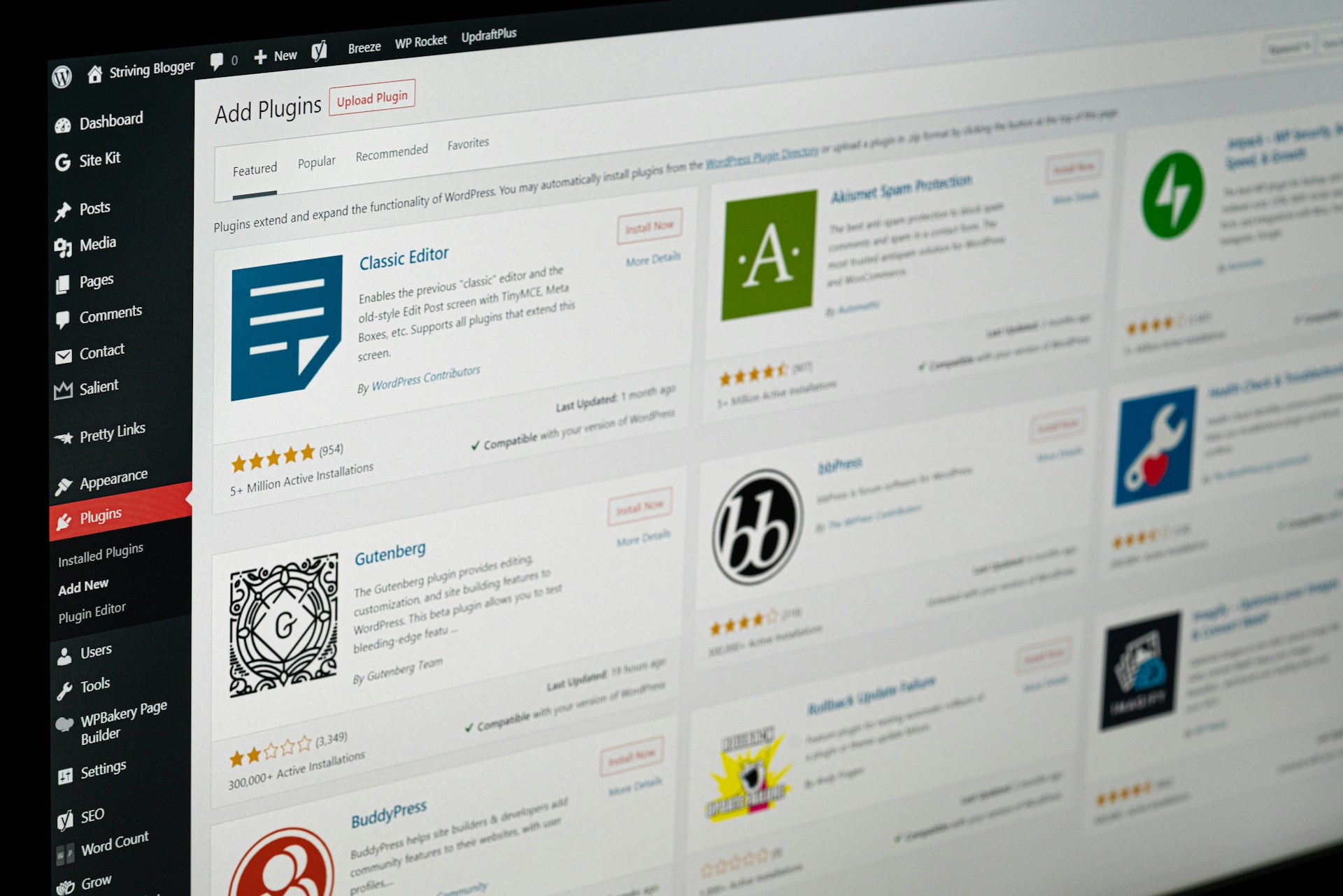
The vertical menu on the left is your main navigation. Here’s what the key sections actually do:
Posts – this is your blog. If your site has a blog or news section, this is where you write, edit, and publish articles. Each post can be assigned a category and tags to keep things organised.
Pages – these are the main pages of your site. Your Home page, About page, Services pages, and Contact page all live here. Unlike posts, pages don’t have categories or dates – they’re the permanent structure of your site.
Media – your image and file library. Every photo, PDF, or document you upload to the site lives here. You can browse, search, and manage your media from this section.
Appearance – this is where your theme lives. Unless you know what you’re doing, it’s best to leave most of this section alone. The one exception is Menus – if you need to add a new page to your navigation, that’s done here.
Plugins – the list of all the tools installed on your site. You’ll occasionally see update notifications here. If you’re on managed hosting, many of these are handled automatically. If not, keeping plugins updated is important for security.
Settings – general site settings including your site title, tagline, and how your URLs are structured. Again, best left alone unless you know what you need to change.
Adding and Editing Content
For most people, Pages and Posts are the only two sections you’ll visit regularly.
To edit an existing page, go to Pages, find the page you want, hover over it, and click Edit. This opens the Gutenberg block editor – WordPress’s visual content editor. Each piece of content on the page is a block. Click on any block to select it and edit the text directly. When you’re done, click Update in the top right corner to save your changes.
To write a new blog post, go to Posts and click Add New. Give it a title, write your content in the editor below, add a category and any relevant tags in the right-hand panel, and click Publish when you’re ready for it to go live.
The Block Editor – The Basics
The Gutenberg block editor is what you’ll spend most of your time in. Each paragraph, heading, image, and button on your page is a separate block. You can click on any block to edit it, use the toolbar that appears above it to format text or change alignment, and add new blocks by clicking the + icon.
The most important thing to know is that you can’t really break the front-end design of your site by editing text content in existing blocks. The design is controlled by your theme and Elementor templates – the block editor is just for content. So type away with confidence.
What Not to Touch
A few areas of WordPress are best left alone unless you have a specific reason and you know what you’re doing:
The theme editor under Appearance – editing theme files directly can break your site’s design and the changes can be overwritten by updates.
Deleting plugins – if you’re not sure what a plugin does, don’t delete it. Some plugins handle critical functionality that isn’t immediately obvious.
Permalink settings under Settings – changing your URL structure after launch can break existing links and affect your SEO. If you think you need to change this, speak to your developer first.
The database – if anyone ever tells you to directly edit your WordPress database, make sure you know exactly why and have a recent backup first.
When Things Look Wrong
If you make a change and something looks off on the front end, don’t panic. Most edits can be undone with Ctrl+Z in the editor, or by clicking Revisions in the right-hand panel of the page or post editor to restore a previous version.
If something looks broken on the site and you’re not sure what caused it, the first thing to do is check whether a plugin update happened recently. If so, that’s usually the culprit. This is another reason why regular backups matter – having a restore point makes these situations much less stressful. Our guide to WordPress maintenance covers backups and updates in more detail.
Getting More Comfortable
The best way to get comfortable with WordPress is simply to use it. Start with small edits – fix a typo, update a phone number, change a line of text. As you get more confident you’ll naturally start exploring more of what the editor can do.
If you ever get stuck or something goes wrong, we’re here. And if you’d rather hand off the content updates entirely alongside the bigger maintenance tasks, a monthly support retainer might be worth considering.
In the meantime, if you want to understand what’s happening under the bonnet of your site on the maintenance side, our WordPress maintenance guide is a good next read.